
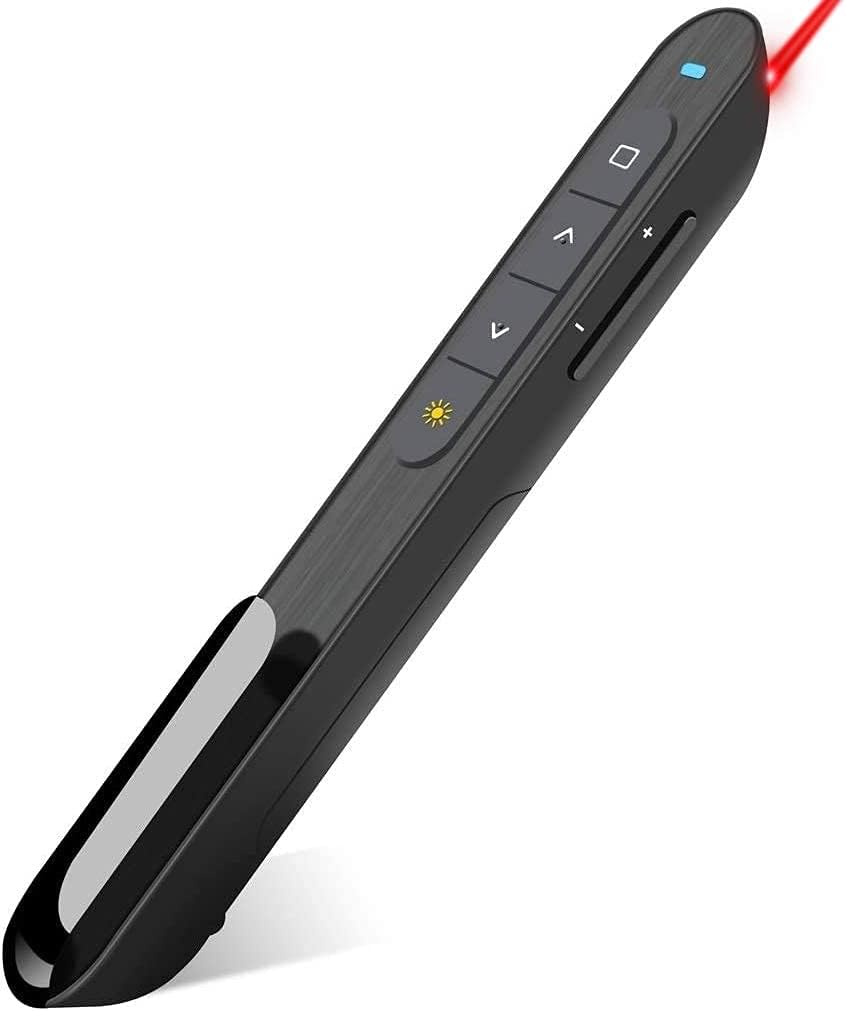
QUI Presentation Clicker with Volume Control
4.3Editor score
Affordable price point
Volume control functions
328 feet wireless range
This guide compares the top laser pointers for presentations including green and red lights, wireless ranges, and compatibility with PowerPoint and Keynote.
Presenting effectively requires tools that keep your audience engaged. A quality laser pointer for presentations helps highlight key points on slides without distracting from your message.
We evaluated ten top models based on visibility, battery life, connectivity, and ease of use. Each product offers unique features tailored to educators, business professionals, and speakers.
Each pick below highlights standout strengths and ideal use cases. Prices and availability change frequently, so verify current details before purchasing to ensure you get the best value.
4.3Editor score

4.6Editor score

4.6Editor score
The following table provides a side-by-side comparison of all ten selected models. Review key specs like laser type, connectivity, and battery options to find the right fit.



The Green Light Presentation Clicker ranks first due to its superior visibility and eco-friendly USB-C power. Its 532nm green laser cuts through ambient light, making it ideal for large lecture halls or bright conference rooms.
We may earn a commission when you buy through this link, at no additional cost to you.
Educators appreciate the thoughtful button layout that includes dedicated hyperlink and volume controls. The magnetic receiver ensures you never misplace the USB dongle, and the ability to swap batteries via USB-C saves money and waste over time.
While the green laser is powerful, it might be overly intense for small meeting rooms. The receiver storage is clever but users should check the magnetic snap occasionally to ensure it stays secure in transit.
This clicker is perfect for teachers and professionals who present regularly and want a reliable, modern tool. Its combination of visibility, battery life, and convenience makes it our top recommendation for 2026.
The green laser is specifically designed to be visible on LCD and LED displays where red lasers often fail. This ensures your audience can follow every point regardless of the projection technology.
Rechargeable design reduces battery waste. A one-hour charge provides weeks of usage, making it cost-effective for daily classroom or office presentations without interruption.
We may earn a commission when you buy through this link, at no additional cost to you.
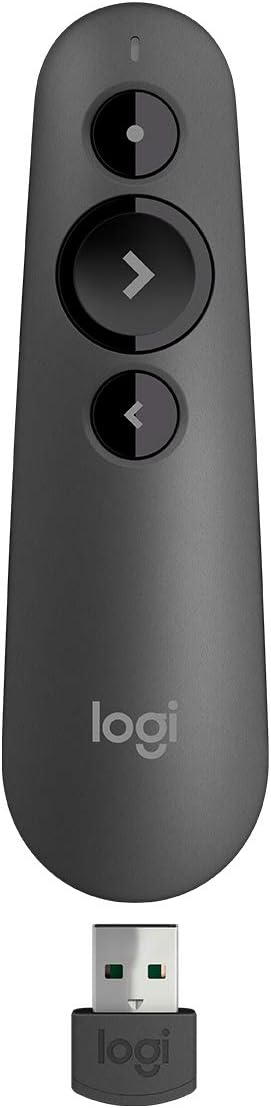
The Logitech R400 remains a staple in the presentation remote market due to its simplicity and dependability. It features a bright red laser that works well against dark backgrounds and standard projection screens.
We may earn a commission when you buy through this link, at no additional cost to you.
Its design prioritizes ease of use with touch keys for slide navigation. The receiver stores safely in the device, preventing loss during transport. No software installation is required, making it perfect for shared computers.
The main drawback is the reliance on AAA batteries and red laser visibility on modern displays. However, for standard office presentations, it offers consistent performance at a reasonable price point.
Recommend this for users who value brand trust and simplicity over advanced features. It is an excellent backup remote or choice for occasional presenters who need something dependable.
Designed for users who want to plug in and start presenting immediately. The absence of drivers or apps reduces technical friction during critical presentations.
The built-in docking bay keeps the USB receiver secure within the clicker. This ensures you always have the receiver when you need to connect to a new computer.
We may earn a commission when you buy through this link, at no additional cost to you.
This model offers an impressive set of features at a budget-friendly price. It includes volume control and a 100-foot wireless range, allowing freedom of movement in large rooms.
We may earn a commission when you buy through this link, at no additional cost to you.
The magnetic storage for the USB receiver prevents loss, and the soft rubber buttons provide a comfortable grip. It works instantly with most presentation software without needing drivers.
The red laser might struggle on high-brightness LED screens, and you must buy batteries separately. However, for the price, the feature set is hard to beat for casual users.
Ideal for students or small business owners needing a functional clicker without breaking the bank. It balances cost and utility effectively for standard presentation needs.
The 100-foot range allows you to move away from the podium and engage directly with the audience. This creates a more dynamic and interactive presentation experience.
Volume buttons let you adjust audio without interrupting your slide flow. This is particularly useful during multimedia presentations where timing matters.
We may earn a commission when you buy through this link, at no additional cost to you.
The Logitech R800 stands out as a premium option with a green laser and integrated timer. The display helps you manage time silently, ensuring you stay on schedule without distracting the audience.
We may earn a commission when you buy through this link, at no additional cost to you.
Its build quality is excellent with smooth contours for comfort during long talks. The green laser ensures visibility even on bright LCD monitors, making it versatile for modern conference rooms.
The main downsides are the higher cost and battery dependency. However, for professionals who need precise time management and visibility, these trade-offs are often worth the investment.
Best for keynote speakers and corporate presenters who want a polished tool with advanced features. It delivers reliability and sophistication in equal measure.
The built-in LCD and vibration alerts help you monitor presentation duration discreetly. This ensures you finish on time without looking at a clock.
The green beam is significantly more visible on LED and LCD screens than red. This guarantees your pointers are seen clearly by the audience.
We may earn a commission when you buy through this link, at no additional cost to you.
The R500s supports both Bluetooth and USB connectivity, giving users flexibility depending on their device. This is especially useful for newer laptops lacking USB-A ports.
We may earn a commission when you buy through this link, at no additional cost to you.
Its smart battery management extends usage by disabling the laser when low. The app allows button customization, though this requires installation on your computer beforehand.
While connectivity is a strength, red laser visibility on bright screens can be an issue. Additionally, the app adds a layer of setup complexity for some users.
Choose this if you need Bluetooth flexibility for modern MacBooks or tablets. It balances classic reliability with modern connection standards effectively.
Bluetooth support ensures compatibility with devices that lack USB ports. This future-proofs your clicker against hardware changes.
The smart power-saving mode extends battery life significantly. You can continue presenting even when the battery is low by disabling the laser temporarily.
We may earn a commission when you buy through this link, at no additional cost to you.
The QUI clicker offers an exceptional 328-foot range, allowing you to roam large auditoriums freely. This range is rare at this price point and provides significant flexibility.
We may earn a commission when you buy through this link, at no additional cost to you.
It includes volume control and supports common presentation software instantly. The red laser is visible enough for standard projectors, though it may fade on high-brightness LED displays.
While the build is basic, it gets the job done reliably. The battery is not included, but long-term use is inexpensive. It is a budget winner for casual users.
Perfect for teachers on a budget who need long range. It delivers core functionality without unnecessary frills.
The 328-foot range allows movement across entire halls. This creates a dynamic stage presence without losing control of your slides.
Compatible with PowerPoint, Keynote, Google Slides, and more. It ensures no software friction for most common office and education tools.
We may earn a commission when you buy through this link, at no additional cost to you.
The Norwii N95 features USB-C connectivity, making it ideal for newer laptops. It also includes a rechargeable battery, eliminating the need for constant battery replacements.
We may earn a commission when you buy through this link, at no additional cost to you.
Button functions can be remapped using the official app, allowing personalized workflows. The green laser ensures high visibility across different screen types.
The app requirement adds setup steps for customization, and the clicker is not optimized for TV screens specifically. Otherwise, it is a strong modern contender.
Best for tech-savvy users who value USB-C and custom controls. It bridges the gap between modern connectivity and presentation needs.
The included USB-C port removes the need for dongles on modern devices. This ensures seamless connection without adapters.
Remappable buttons let you tailor the clicker to your presentation style. This reduces errors and increases efficiency during live talks.
We may earn a commission when you buy through this link, at no additional cost to you.
This remote solves the dongle issue with a built-in receiver that works with USB-A and USB-C. This makes it a universal choice regardless of your laptop type.
We may earn a commission when you buy through this link, at no additional cost to you.
It features a comfortable rubber feel and supports most systems and software. Setup is straightforward, requiring minimal technical knowledge.
The range is shorter than premium models at 49 feet, and the red laser may not be visible on all displays. Still, it is highly practical.
Ideal for users who switch between different computers with varying ports. The universal receiver ensures compatibility across environments.
The built-in dual receiver removes the need for adapters. This is critical for modern MacBooks and older PCs alike.
Rubber coating provides a secure grip during long presentations. Comfortable design reduces hand fatigue when holding the remote.
We may earn a commission when you buy through this link, at no additional cost to you.
This model improves on the universal theme by offering a single receiver with both USB-A and USB-C connectors. It simplifies the setup for any modern computer.
We may earn a commission when you buy through this link, at no additional cost to you.
It includes volume control and offers a solid 100-foot range. The magnetic storage ensures the receiver is always with the device.
The red laser may not be suitable for bright screens, and two batteries are required. However, the convenience of the dual-port receiver is a major advantage.
Recommended for professionals who work with mixed device types. It offers practical convenience that saves time during setup.
One receiver works with all computers. This eliminates the need for carrying multiple dongles or adapters.
The magnetic slot holds the receiver securely. This prevents loss and keeps your gear organized during travel.
We may earn a commission when you buy through this link, at no additional cost to you.
This clicker is one of the lightest options available. It offers a clean, ergonomic design that fits comfortably in the hand for all presentations.
We may earn a commission when you buy through this link, at no additional cost to you.
It supports a 100-foot range and works with standard software without drivers. The battery life is decent with a single AAA battery lasting two months.
It lacks advanced features like volume control or timers. However, its simplicity and low price make it accessible for anyone needing a basic remote.
Best for users who want a minimal, functional tool. It is reliable and easy to carry anywhere.
With fewer buttons, users avoid confusion. The focus remains on slide navigation and pointing.
Lightweight design makes it easy to slip into any pocket. This ensures you always have it when you need to present.
We may earn a commission when you buy through this link, at no additional cost to you.
Choosing the right laser pointer depends on your environment and technical needs. Consider these factors to ensure the device enhances your presentation rather than distracting from it.
Green lasers (532nm) are significantly brighter and more visible on LED and LCD screens than red lasers. If you frequently present on modern high-brightness displays, green is the safer choice to ensure your audience sees every point clearly. Red lasers work well on dark backgrounds and standard projectors but may fade on bright surfaces.
Prioritize green lasers for large conference rooms or bright lecture halls where ambient light interferes with visibility.
Wireless range varies from 49 to 328 feet depending on the model. If you present in large auditoriums or need to move around the audience, look for a model offering at least 100 feet of range. Shorter ranges are sufficient for podium-based presentations but may limit your interaction with the crowd.
Select a range that matches the size of your typical venue to maintain control without stepping away from the mic.
Modern clickers offer rechargeable USB-C batteries or standard AAA batteries. Rechargeable options save money and reduce waste over time, making them ideal for daily use. AAA batteries provide convenience if you need to replace them quickly, but ensure you carry spares for long events.
Choose rechargeable for heavy usage and AAA for occasional or emergency backups.
Check if your laptop has USB-A or USB-C ports. Models with dual-port receivers or USB-C connectivity prevent the need for adapters. Bluetooth connectivity offers extra flexibility for newer devices without USB ports, but ensure your system supports the required drivers or apps.
Match the receiver type to your primary device to avoid setup delays before your presentation.
Beyond slide navigation, look for features like volume control, hyperlink clicking, or black screen toggling. These tools allow you to manage audio and content without interrupting your flow. Advanced models may also include timers or customizable buttons for personalized workflows.
Prioritize features that align with your presentation style, such as volume buttons for multimedia-heavy talks.
Since you may hold the clicker for long periods, ergonomics matter. Rubber coatings and contoured designs reduce hand fatigue. Durable materials ensure the device survives travel in bags or pockets. Lightweight models are easier to carry but ensure buttons remain tactile.
Test the grip if possible; comfort directly impacts your confidence during the talk.
Ensure the clicker works with your primary software like PowerPoint, Keynote, or Google Slides. Most plug-and-play models support these natively, but advanced customization may require specific drivers. Check for Mac and Windows support if you switch systems frequently.
Verify compatibility with your presentation platform to avoid technical glitches on stage.
Prices vary significantly from budget-friendly options to premium professional tools. While expensive models offer extra features like green lasers and timers, budget models often cover basic needs well. Assess your frequency of use to decide if the investment is justified.
Balance cost with frequency of use; frequent presenters benefit more from premium features.
Insert the USB receiver into your computer or connect via Bluetooth. Press the power button to activate the device. Navigate slides using the forward and backward arrows, and use the laser button to highlight specific points without interrupting your speech.
Store the receiver in the built-in slot or magnetic dock when not in use. If the device includes a rechargeable battery, charge it fully before major events. For battery models, carry spares to avoid unexpected downtime during presentations.
Clean the device with a soft, dry cloth to remove dust from buttons. Avoid exposing the clicker to moisture or extreme temperatures. Replace batteries or recharge regularly to maintain optimal performance and lifespan.
Yes, Class 2 green lasers are safe for presentation use when handled properly. They are visible and effective but should never be pointed directly into anyone's eyes. Follow manufacturer guidelines to ensure safety for your audience.
Battery life varies by model but rechargeable units typically last weeks on a single charge. Standard AAA models can last months depending on usage frequency. Always check the manufacturer's rating for expected longevity.
Most modern presentation clickers are plug-and-play and do not require drivers. However, advanced customization features may need software installation for Mac or Windows systems. Check the product details for specific requirements.
Yes, most universal clickers support PowerPoint, Keynote, Google Slides, and Prezi natively. Ensure the software is open and running before starting your presentation to ensure all buttons function correctly.
Simply plug the receiver into the new device. The clicker is designed to work across Windows, Mac, and Linux without configuration. Bluetooth models may require pairing once but then connect automatically.
Check the battery level first. If the battery is dead, replace it or recharge the device. If using Bluetooth, ensure the connection is active. Having a backup remote or using keyboard shortcuts can save your talk.
The top picks for 2026 offer a range of solutions from budget-friendly remotes to professional tools with green lasers and timers. The Green Light Presentation Clicker stands out for visibility, while the Logitech R800 provides premium features for demanding environments.
Prioritize visibility and connectivity when making your choice. Ensure the model supports your devices and screen types to avoid technical issues. A reliable clicker should enhance your presentation without causing distractions.
Prices and availability change frequently, so check current listings before purchasing. Investing in the right tool ensures you deliver your message with confidence and professionalism.