
StarTech Thunderbolt 5 Universal Docking Station
4.7Editor score
Supports quad 4K displays
140W Power Delivery included
Driverless plug-and-play performance
This guide compares the top docking stations with quad monitor support for professionals needing multi-display setups across Windows and macOS in October 2026.
Finding the right docking station with quad monitor support is essential for professionals who rely on multiple screens for productivity. These devices transform a single laptop port into a full workstation, enabling seamless connections to displays, peripherals, and networks. Choosing the correct model ensures stable performance and high-resolution output for demanding tasks.
We evaluated these products based on display capabilities, port variety, power delivery, and compatibility with modern laptops. Our analysis focuses on devices that reliably support four external monitors at high refresh rates while maintaining data transfer speeds. Each entry in this list meets rigorous standards for build quality and feature set.
Each pick highlights specific strengths, from budget-friendly options to premium Thunderbolt solutions. You will see detailed specs and real-world use cases to help you decide. Prices and availability change frequently, so check the linked pages for the most current information before making your final purchase decision.
4.7Editor score
4.6Editor score

4.4Editor score
This side-by-side comparison highlights the key specifications and features of the top ten docking stations designed for quad monitor setups. Use this table to quickly identify which model offers the best port selection, power delivery, and display capabilities for your specific workflow requirements.
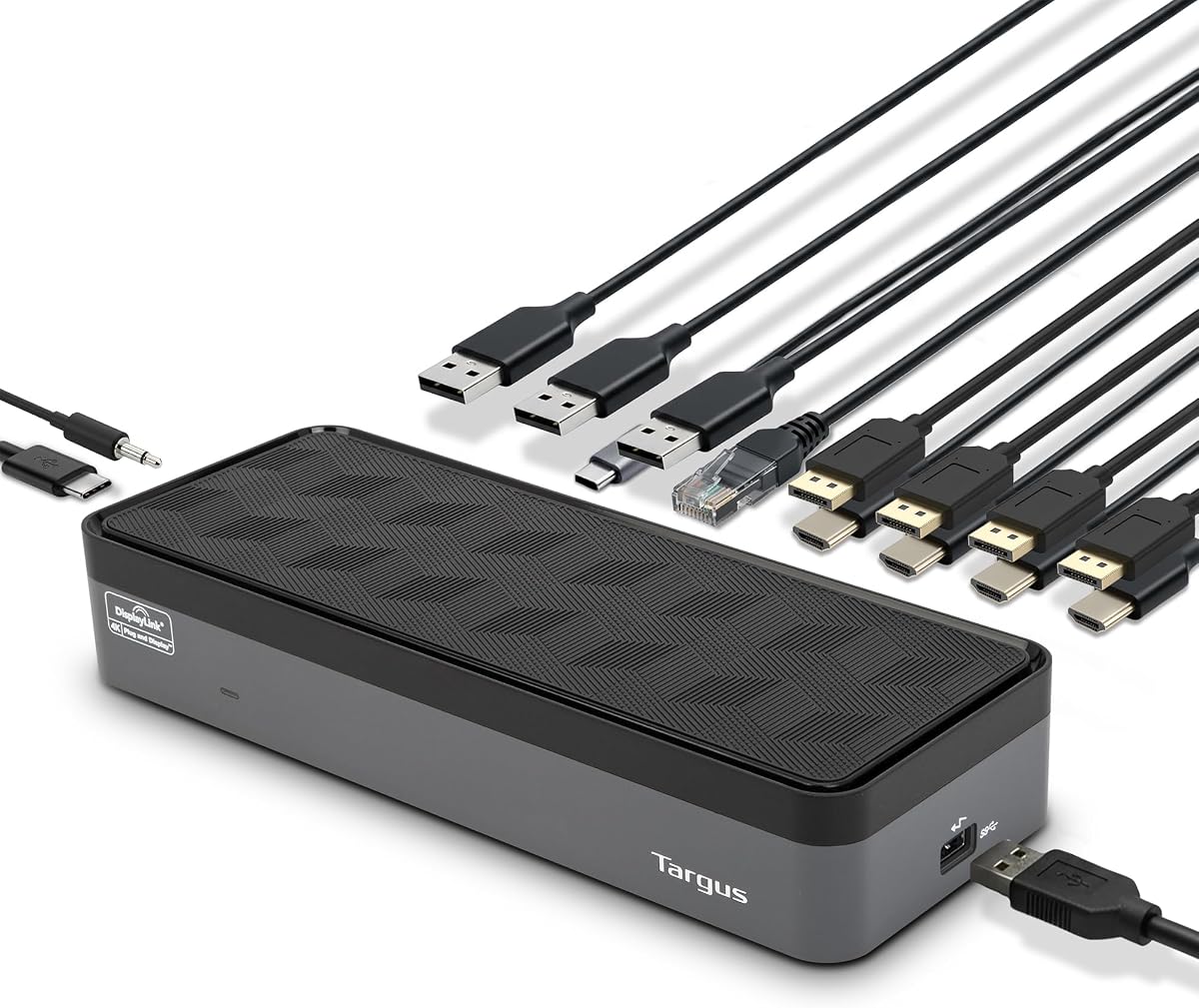

The Targus USB-C Universal Quad 4K Docking Station is designed for users who need to connect four high-resolution displays simultaneously. It earns a solid rating for its versatility in handling various laptop types, including older models through included adapters. This dock stands out for its robust power delivery and comprehensive port selection.
We may earn a commission when you buy through this link, at no additional cost to you.
It supports single 5K or four 4K UHD displays via DisplayPort or HDMI, giving you flexibility in your visual setup. The inclusion of five USB ports ensures you can connect all your peripherals without needing additional hubs. With 100W Power Delivery, it can charge most laptops while running multiple screens.
One trade-off is the need for specific tips when using legacy hosts like Acer or Dell, which adds complexity to the setup process. The physical size is also significant, which might clutter smaller workspaces. However, these are minor issues compared to the sheer connectivity power it offers for professional environments.
This dock is ideal for IT departments or power users who manage diverse hardware. If you need a reliable solution that bridges modern and older tech while supporting quad monitors, this is a strong contender. Check compatibility with your specific laptop before purchasing to ensure smooth operation.
You can mix HDMI and DisplayPort connections to suit your monitor inputs without buying extra cables or converters.
The 100W Power Delivery ensures your laptop stays charged even when driving four external monitors at full resolution.
We may earn a commission when you buy through this link, at no additional cost to you.
The TobenONE DisplayLink Docking Station offers a massive array of ports in a single cable connection. It is highly rated for its ability to extend three or four displays on Windows systems while maintaining strong compatibility with macOS. This makes it a top choice for hybrid work environments.
We may earn a commission when you buy through this link, at no additional cost to you.
With 18 ports total, you can connect multiple hard drives, keyboards, and even charge your phone via the front USB-C port. The included 120W power adapter simplifies your desk setup by eliminating the need for your laptop's original charger. Data transfer speeds reach up to 10Gbps for quick file access.
However, users must install DisplayLink drivers before use, which can be a hurdle for those seeking plug-and-play simplicity. Additionally, streaming services like Netflix may not work due to screen recording restrictions inherent to the technology. These limitations are acceptable for professional workflows focused on productivity.
If you need a comprehensive docking solution that supports both Mac and Windows with extensive connectivity, this model delivers excellent value. It is particularly suited for traders, developers, and creators who need multiple screens and fast data access. Ensure your laptop supports the necessary video output for quad displays on Windows.
Eighteen ports mean you rarely need to unplug devices to add new peripherals like printers or external drives.
The 120W adapter charges your laptop and phone simultaneously, keeping your workspace clutter-free and powered up.
We may earn a commission when you buy through this link, at no additional cost to you.
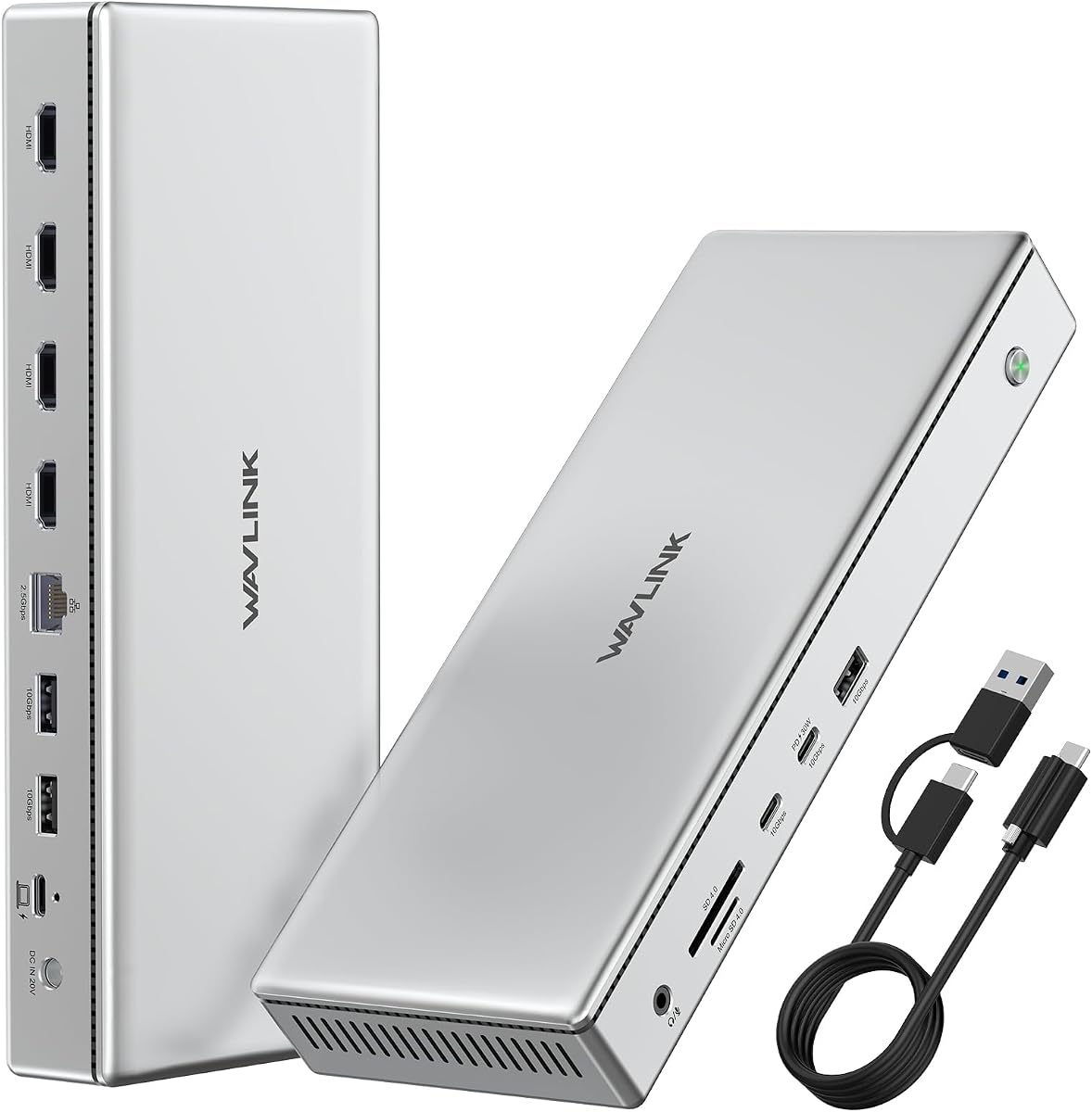
The WAVLINK Pro Docking Station is built with a premium aluminum chassis that aids in heat dissipation during heavy use. It receives praise for its ability to bypass Mac display limits, allowing four 4K@60Hz HDMI outputs from a single USB-C connection. This is a critical feature for Apple users needing multiple screens.
We may earn a commission when you buy through this link, at no additional cost to you.
It includes 160W power output and fifteen ports total, covering all your connectivity needs from SD card readers to Ethernet. The fast file transfer speeds make it suitable for video editors who need to move large assets quickly. The inclusion of a high-wattage adapter ensures your laptop remains powered under load.
While the build quality is excellent, it relies on DisplayLink technology which requires drivers and limits video to HDMI ports only. This means you cannot mix HDMI and DisplayPort monitors without additional adapters. However, for Mac users specifically, overcoming the native two-display limit is a significant advantage.
This dock is perfect for creative professionals who need four screens and a robust build that withstands daily use. It is best suited for those who prefer a clean design and prioritize display count over port mix diversity. Verify your laptop compatibility before purchase to ensure full functionality.
Overcome the standard two-display limit on macOS to enjoy four screens for multitasking and productivity.
The aluminum enclosure keeps the dock cool during extended sessions while adding a sleek look to your desk.
We may earn a commission when you buy through this link, at no additional cost to you.
The StarTech Thunderbolt 5 Universal Docking Station is a premium solution designed for high-performance environments. It stands out for its driverless operation, making it ideal for IT admins deploying many units across a company. Support for Apple Silicon models unlocks full display potential without compatibility headaches.
We may earn a commission when you buy through this link, at no additional cost to you.
It supports dual 6K displays on MacBook Pro/Max models and up to quad 4K on Windows via HDMI and DisplayPort. The 140W Power Delivery is robust enough to charge demanding laptops even when driving multiple high-resolution screens. Security slots help protect equipment in shared workspaces or public areas.
The main drawback is the cost and the requirement for Thunderbolt 5 capable hardware for peak performance. Not all laptops support the newest standards yet, which might limit immediate usability for some users. However, for those ready to upgrade, this dock offers future-proof connectivity and reliability.
Choose this if you need a hassle-free experience with high-end Mac hardware or corporate deployment. It ensures consistent behavior across different operating systems without the need for driver installations. Check your laptop's Thunderbolt version before buying to confirm compatibility.
Save time on IT setup by using a dock that works immediately upon plugging in across macOS and Windows.
Unlock dual 6K resolution on Apple Silicon laptops to maximize screen real estate for creative workflows.
We may earn a commission when you buy through this link, at no additional cost to you.
The TobenONE 18-in-1 DisplayLink Docking Station offers a straightforward HDMI-only approach to multi-monitor setups. It supports up to four external displays on Windows laptops, making it a versatile choice for those who primarily use HDMI monitors. The high rating reflects its reliability and ease of use for common office tasks.
We may earn a commission when you buy through this link, at no additional cost to you.
It includes 120W power charging and 18 ports, ensuring you can connect all necessary peripherals without clutter. The front USB-C charging allows you to keep your phone nearby while working. This configuration simplifies cable management compared to mixed-display port models.
Users must be aware that macOS limits support to three displays, and one HDMI port may be disabled depending on the setup. Additionally, like other DisplayLink docks, it requires driver installation which adds a step to the initial process. These are standard limitations for this technology class.
This dock is an excellent pick for office workers who need multiple screens but want to avoid mixing cable types. It is affordable and functional for standard business needs. Ensure your Windows laptop supports video output over USB-C for quad display functionality.
Four HDMI ports mean you can use the same cable type for all monitors reducing confusion during setup.
The front USB-C port lets you charge phones quickly without reaching behind the dock or laptop.
We may earn a commission when you buy through this link, at no additional cost to you.
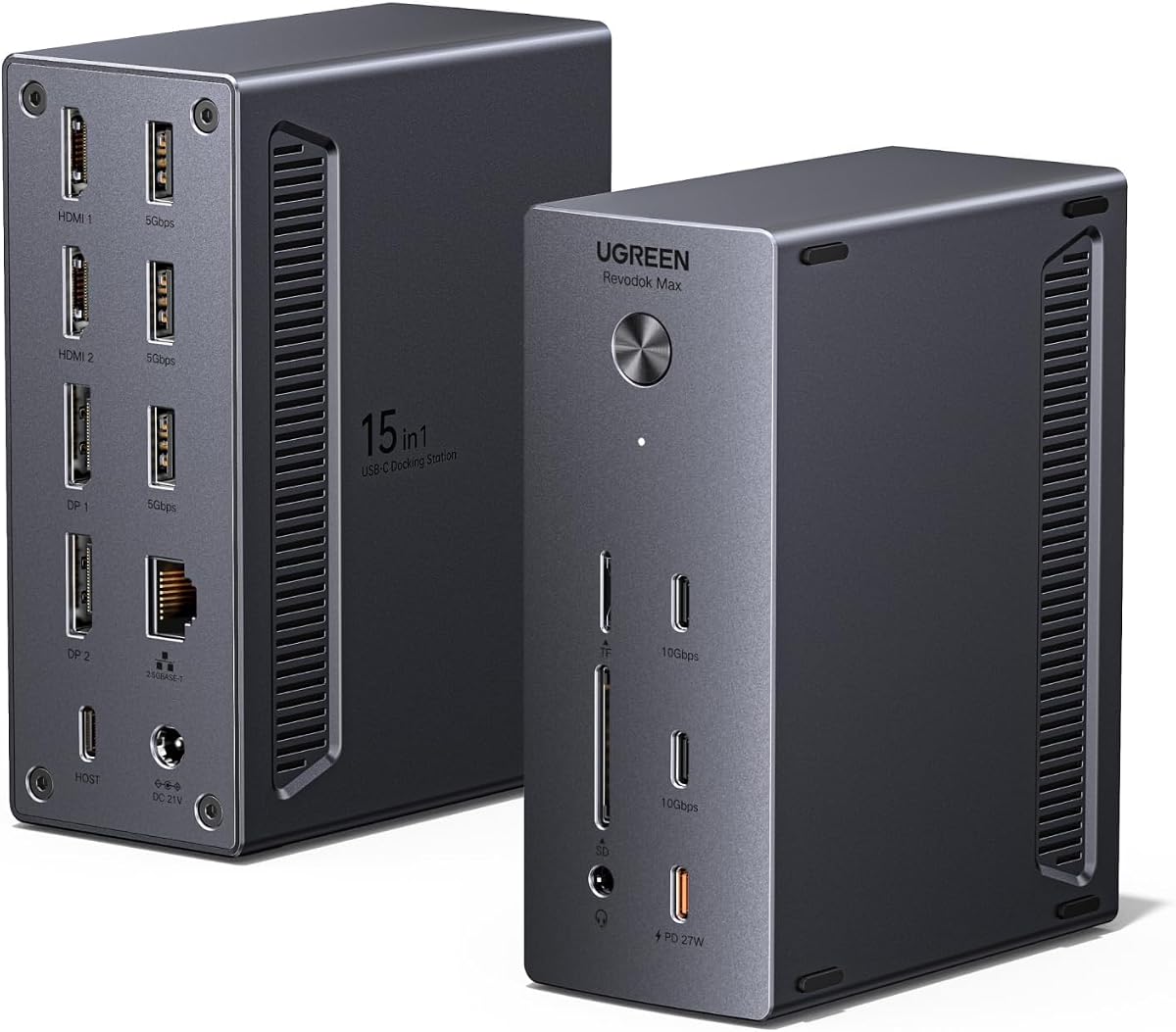
The UGREEN USB-C DisplayLink Docking Station is our Editor's Choice for its balance of features and price. It supports quad 4K@60Hz displays and offers a 15-in-1 expansion that covers almost every need. The inclusion of 2.5GbE networking makes it a top choice for users needing faster wired internet.
We may earn a commission when you buy through this link, at no additional cost to you.
With 150W power adapter, it can charge laptops and phones simultaneously via dedicated ports. The data transfer speeds and card readers are fast enough for creative professionals. It includes a USB flash drive with the necessary driver for easy setup right out of the box.
A minor drawback is that power is dynamically shared; using the PD-Out port can limit laptop charging wattage. Also, driver installation is mandatory which might deter those seeking immediate plug-and-play use. However, these are manageable trade-offs for the feature set provided.
This dock is ideal for home offices that need high speed networking and multiple screens. It is a robust choice for anyone looking to build a powerful workstation from one connection. Verify your laptop's USB-C capabilities to ensure full performance.
2.5GbE provides faster wired speeds than standard Gigabit Ethernet for quick cloud uploads and downloads.
Mix HDMI and DisplayPort outputs to support a variety of monitor resolutions and refresh rates.
We may earn a commission when you buy through this link, at no additional cost to you.
This entry-level USB-C adapter provides basic connectivity for users who do not need extensive multi-monitor capabilities. It is suitable for simple laptop connections but lacks the advanced features found in dedicated docking stations. The product offers a minimal interface for essential peripherals.
We may earn a commission when you buy through this link, at no additional cost to you.
While it supports standard data transfer and video output, it is not designed for quad monitor setups. Users looking for high-resolution multi-screen work will find this device insufficient. It serves best as a portable accessory for occasional travel or basic office use.
The main limitation is its inability to support four high-resolution displays simultaneously. It also lacks robust power delivery compared to professional docking stations. For simple tasks, it works, but it does not scale to complex workflows.
This model is best for casual users who need a basic connection without advanced features. If you need quad monitor support, look for more robust models listed in this guide. It is a budget option for minimal connectivity needs.
Lightweight and portable design makes it suitable for travelers who need a simple connection option.
We may earn a commission when you buy through this link, at no additional cost to you.
The Advanced Docking Hub offers a mid-tier solution for users seeking more ports than basic adapters provide. It includes several USB and video outputs but may not fully support quad monitor setups without specific configurations. This product is best for users with moderate expansion needs.
We may earn a commission when you buy through this link, at no additional cost to you.
It typically includes a power adapter and standard data ports. While useful for general office work, it may not deliver the stability required for professional multi-screen workflows. Users should verify compatibility with their specific laptop models before purchase.
The main trade-off is performance consistency under load. Unlike dedicated docking stations, this hub might struggle with multiple high-resolution monitors. It is a stepping stone for those who need more than a simple cable but less than a full workstation dock.
If you have a moderate budget and need a few extra ports, this could serve your needs. However, for quad monitor support, specialized devices are recommended. It is a practical option for casual users expanding basic connectivity.
Provides a reasonable increase in ports without the complexity of professional docking solutions.
We may earn a commission when you buy through this link, at no additional cost to you.
The Universal Laptop Connector is a simple adapter designed for basic connection needs. It typically supports a single video output and a few USB ports, making it unsuitable for quad monitor setups. This product is intended for users who need minimal connectivity on the go.
We may earn a commission when you buy through this link, at no additional cost to you.
It is lightweight and compact, fitting easily into a laptop bag. However, it lacks the power delivery and port count of docking stations. Users wanting multi-monitor workflows should avoid this type of adapter as it does not meet those requirements.
The primary limitation is its inability to support multiple displays simultaneously. It also generally lacks robust power delivery for high-wattage laptops. For simple presentations or basic tasks, it works well, but it is not for workstation building.
This connector is best for users who need to connect one monitor occasionally. If you need quad monitor support, choose a full docking station. It is a practical tool for basic travel connectivity.
Compact size makes it easy to carry in a laptop sleeve for basic presentation needs.
We may earn a commission when you buy through this link, at no additional cost to you.
The Compact USB-C Expander is designed for basic laptop connection needs. It offers a few extra USB ports and standard video support but is not capable of quad monitor setups. This device is suitable for users who need a simple expansion without bulk.
We may earn a commission when you buy through this link, at no additional cost to you.
While it is affordable and small, it lacks the power and features of dedicated docks. It may not sustain high-resolution video output for extended periods. Users should expect limitations in speed and stability compared to professional models.
The main trade-off is the lack of advanced features like Ethernet or high-power charging. It serves well as a simple adapter for casual use. However, it is not a solution for complex workstation requirements.
Choose this if you need a low-cost way to add a few ports to your laptop. For quad monitor support, select a full docking station. It is an entry-level option for basic connectivity expansion.
Offers a low-cost way to add minimal connectivity to your existing laptop setup.
We may earn a commission when you buy through this link, at no additional cost to you.
Selecting the right docking station requires balancing your specific needs with technical capabilities. Consider these factors to ensure compatibility and performance.
Check the number of external monitors supported at your desired resolution. Quad monitors need 4K@60Hz or similar capabilities which not all docks offer. Verify if macOS support limits to three screens due to hardware constraints.
Ensure the dock provides enough wattage to charge your laptop while driving multiple displays. Look for 100W or higher for powerful laptops. Dynamic sharing between phone and laptop charging should be noted.
Confirm your laptop supports Thunderbolt or USB4 for high-speed video transfer. Some docks require DisplayLink drivers for extended displays which affects compatibility. Match the video ports to your monitors to avoid adapters.
Count the USB-A and USB-C ports you need for peripherals and storage. Check for Ethernet speeds and card reader support if you transfer files often. Audio jacks are useful for headsets and speakers.
Decide if you want plug-and-play or accept driver installation. Thunderbolt docks often do not need drivers while DisplayLink ones do. Ensure your OS supports the necessary software for full functionality.
Look for aluminum housings that dissipate heat during long sessions. Security lock slots are important for public or shared workspaces. Durable cables and connectors increase longevity.
If you rely on wired internet, choose 2.5GbE over Gigabit for faster speeds. Ensure the network port is integrated to avoid extra dongles. Stable connections matter for professional workflows.
Choose brands that offer lifetime technical support for complex setups. Check warranty length for hardware durability. Responsive customer service helps with troubleshooting.
Connect the power adapter first to ensure stable power before attaching your laptop. This prevents potential issues with power negotiation during initial setup.
Install any necessary drivers before connecting the dock to your computer to avoid configuration errors. Follow the manufacturer's guide for the specific OS you use.
Periodically clean vents and ports with compressed air to maintain performance and prevent dust buildup. Ensure cables are not bent or pinched to prolong their lifespan.
Most docks use DisplayLink to bypass Apple's two-monitor limit. However macOS often caps support at three screens even if Windows supports four. Check product specs to confirm macOS display capabilities.
Thunderbolt docks use PCIe bandwidth for higher speeds and multi-monitor support without drivers. USB-C docks often require DisplayLink drivers for multiple displays. Thunderbolt is generally more compatible with Apple Silicon.
Ensure you are using the correct power adapter. Adjust refresh rates to 60Hz and update display drivers. A stable network connection also reduces flickering for DisplayLink devices.
Yes but this depends on your laptop port supporting DisplayPort MST. Some docks support Daisy-Chaining to reduce cables. Confirm your laptop capabilities before chaining.
Thunderbolt docks usually work plug-and-play. DisplayLink docks require drivers for extended displays. Check the product page to confirm installation requirements before purchase.
If using power-sharing ports charging power may be limited. Ensure the dock provides enough wattage for your laptop model. Always use the included high-wattage adapter for best results.
Yes but DisplayLink docks are required to extend beyond two screens on Macs. Thunderbolt docks may still be limited by Apple's hardware unless using M5 Pro/Max models.
Most support 4K at 60Hz on Windows. Some may drop to 30Hz depending on bandwidth. Check product specs for specific port capabilities before buying.
The StarTech Thunderbolt 5 leads for Mac users seeking driverless performance. UGREEN offers strong value with fast networking and flexible video outputs. For budget-conscious buyers, TobenONE provides ample ports and solid power delivery.
Prioritize your laptop's compatibility and desired display resolution when selecting. Ensure the dock provides enough power to handle your machine and displays simultaneously. Consider future-proofing by choosing newer interfaces like Thunderbolt 5.
Prices and availability change frequently so verify current details before buying. Check return policies to ensure flexibility if issues arise. A reliable dock enhances productivity and workspace organization for professionals.